
 Proximity Learning Team
A vacancy opens in October, or a fall schedule needs one more section covered, and suddenly a principal has days, not a semester, to prepare a physical room for livestreamed instruction. It is tempting to brace for a total tech overhaul, but most classrooms already have the essentials for virtual learning. The gap between what is on hand and what is needed is often surprisingly small. Here is a checklist covering technology, staffing, and simple routines to make sure the first week feels smooth, not chaotic.
Key Takeaways
- Most classrooms already have the display, audio, and internet connection a livestreamed lesson requires, so setting up for live online teaching is rarely a full audiovisual overhaul.
- Facilitator prep matters as much as the technology. A well-briefed facilitator can cover for a technical hiccup; a confused one cannot.
- Proximity Learning’s own onboarding moves districts from contract to first day of class in weeks, not months, which is fast enough to cover a vacancy inside the same semester it opens.
- A short tech run-through and a clear communication plan for students and parents prevent almost every first-week problem before it starts.
What “Ready” Actually Means for a Livestreamed Classroom
Being “ready” does not require a classroom makeover. It means the display, audio, and internet are all working, a facilitator has been chosen and prepared, and the schedule matches the school’s actual bell times. Think of it as a pre-flight checklist, not a construction zone, since the room most likely already has a projector, computer, and network connection doing similar work every day. Proximity Learning’s Hardware and Implementation Support exists specifically to close whatever small gap remains, walking a building’s IT staff through exactly what to confirm, rather than handing over a generic spec sheet and leaving them to figure it out on their own. The company’s own onboarding process covers scheduling, certifications, family communication, and tech setup as a single, coordinated sequence, which is what allows most districts to move from a signed agreement to a live class in weeks rather than months. A principal’s job in this process is mostly confirmation: verifying what is already in the room works, flagging early what does not, and deciding who on staff will take on the facilitator role once the technology side is settled
Technology Checklist for Virtual Classroom Setup
Display and Audio Setup
Almost any classroom display will do for livestreamed lessons: interactive panels, projectors, or even a big TV hooked up to a computer. The key is that every student can see clearly and the audio fills the room without echoes or distortion. A simple external speaker can fix most sound issues in seconds, and it is smart to test the volume from the back row, not just the front. If the livestreamed teacher needs to see and hear the class, a webcam and microphone on the classroom computer will do the trick, and most newer computers already have both built in.
Reliable Internet and Backup Plan
A steady internet connection is more important than a blazing fast one. While 25 Mbps is the minimum download speed, a wired connection is usually more reliable than WiFi when available. Every classroom should have a simple backup plan for outages: a hotspot, an IT contact, or a quick offline activity the facilitator can start while issues are being resolved. This does not mean new infrastructure, just a clear plan shared with the facilitator in case of a hiccup.
Student Device Access
Some livestreamed classrooms use a single shared display, with the facilitator guiding the room and students speaking up just as they would with any in-person teacher. Others give each student their own device to interact with the virtual teacher through chat or on-screen tools. Neither method is superior; the best fit depends on what devices the school already has. Proximity Learning’s team can help match the setup to what is already available, so there is no need to start from scratch.
Classroom and Staffing Checklist
Assigning and Briefing the In-Classroom Facilitator
Before the first day, choose a specific person as the classroom facilitator, not just whoever is free that period. Give your facilitator a clear, simple briefing on what the job includes: managing behavior, handling tech issues, and supporting the livestreamed teacher’s instructions. Just as important, clarify what they do not do: they do not teach, grade, or act as the certified teacher. When facilitators know exactly where their role begins and ends, they walk in with confidence and students notice that right away.
Communicating the Schedule to Students and Parents
Most confusion about who is teaching comes from a lack of communication, not a tech glitch. Before the first livestreamed lesson, make sure students know the facilitator’s name and role, the virtual teacher’s name, and what to expect each day. A quick note home to parents with these same details will answer most questions before they reach the front office.
Aligning to the School’s Bell Schedule
A livestreamed class must follow the school’s real bell schedule, matching the exact periods students already know and not just an approximate time block. Proximity Learning schedules its virtual teachers around your district’s calendar and grading routines, so the school day does not have to change for the livestream. Alignment before day one prevents the awkwardness of lessons starting while students are still arriving or ending abruptly when the bell rings mid-sentence.
Best Practices for a Smooth First Week
Do a Tech Run-Through Before Day One
Before students arrive, check the display, audio, internet, and logins exactly as they will be used in class. Proximity Learning recommends a complete systems test with support before day one, so any issues show up during a calm practice, not in front of a full class. This hour of prep solves tech problems before they happen and gives the facilitator a chance to practice troubleshooting in advance.
Introduce the Virtual Teacher to the Class
Students settle in faster when they know a little about their livestreamed teacher beforehand. A quick introduction turns the stranger on the screen into a familiar face, and the facilitator can share this during morning announcements or homeroom the day before. It takes just a moment and makes the first days feel much less awkward.
Build in a Feedback Loop With the Facilitator
No matter how well you plan, the first week will reveal small surprises, as it does for every teaching model. Maybe the volume needs tweaking, the pacing feels off, or a routine needs adjusting once students are present; set aside a few minutes each day that first week for the facilitator to share what is working and what is not. Proximity Learning’s curriculum is designed to fit your district’s needs, so feedback about pacing or content actually leads to improvements instead of getting lost.
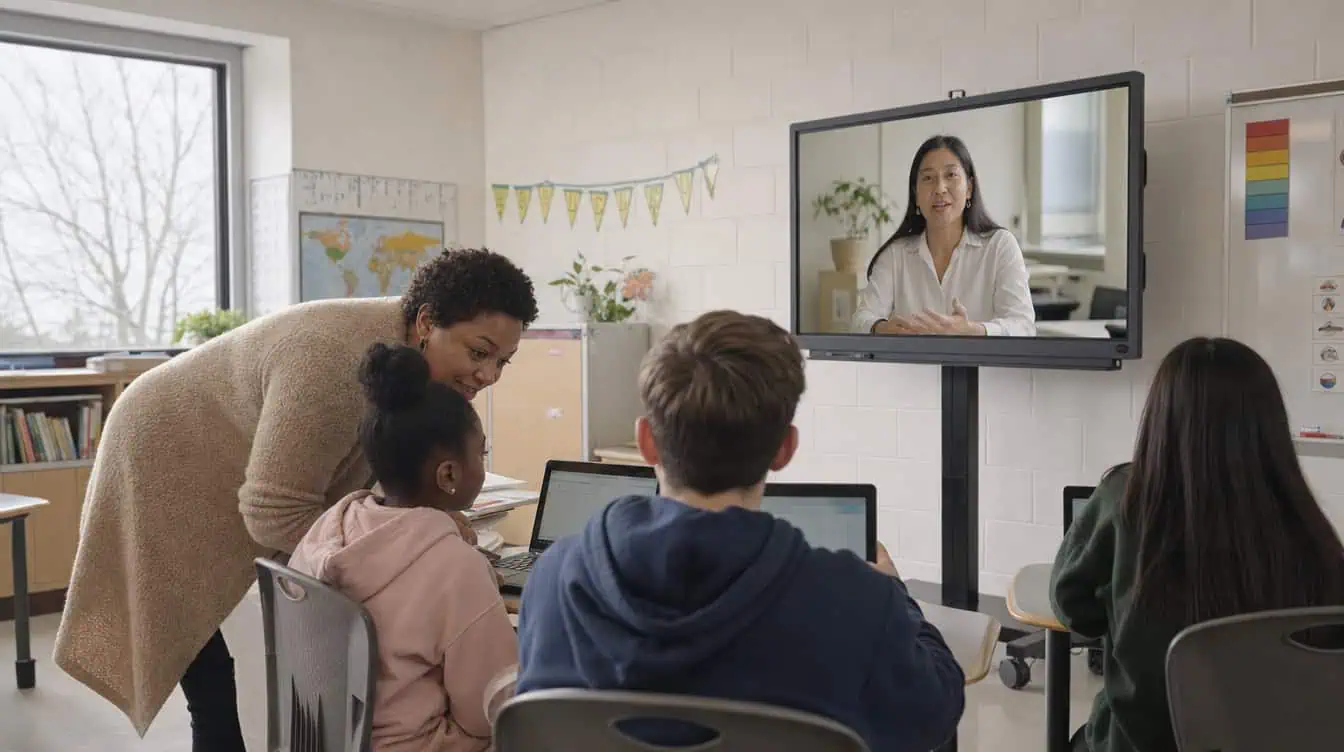
No Need for Costly, New Equipment
None of this requires a principal to become a technician or rebuild a classroom from scratch before a vacancy can be covered. It requires confirming a handful of things that are usually already true: a working display and audio setup, a stable internet connection with a backup plan, a facilitator who understands exactly what their role does and does not include, and a schedule that matches the school’s actual bell schedule rather than an approximation of it. Handle those pieces before day one, and the livestreamed classroom will feel remarkably like any other classroom in the building, except with a highly qualified teacher joining from elsewhere.
Frequently Asked Questions
What equipment is needed for a livestreamed classroom?
You will need a display visible to every student, clear audio that reaches every corner, a steady internet connection, and a computer with a webcam and microphone for interactive sessions.
How fast can a classroom be set up for virtual instruction?
With Proximity Learning, districts can go from signing an agreement to launching live classes in just weeks. Everything from scheduling to tech setup is streamlined into one smooth, quick process.
How much does classroom setup typically cost or save?
Most schools already have the necessary equipment, so there is rarely a need for new purchases, and when you compare setup costs to the hefty price of a long-term teacher vacancy, the benefit is clear.
Do we need new software licenses for a livestreamed class?
No additional licenses are typically required beyond those provided by Proximity Learning as part of the service. The classroom-side setup runs in an up-to-date web browser on an existing computer, not on a separate platform that a district has to purchase and maintain.
What if our internet infrastructure is outdated?
A simple wired connection and a clear backup plan can address most internet issues. Proximity Learning’s team will make sure your setup is reliable and consistent from the first day.